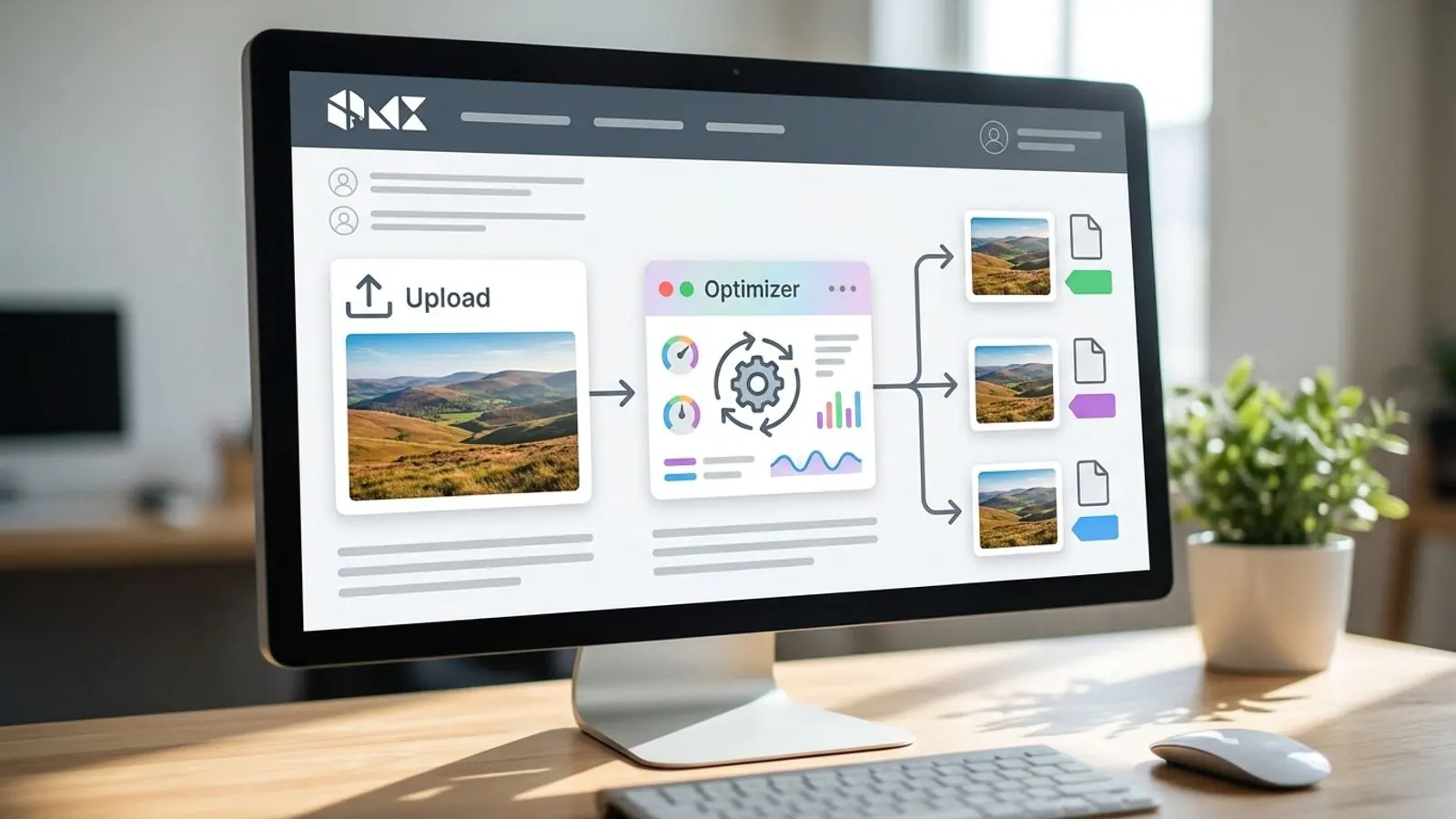
Batch-Compress 1,000 Product Photos Without Melting Your Laptop (CLI, API, or Browser)
A practical guide to batch compressing large ecommerce photo catalogs. Compares local CLI tools, browser tools, and an image compression API, with commands, a decision table, and a QA checklist.
Mike · · · 10 min read · 1,812 words
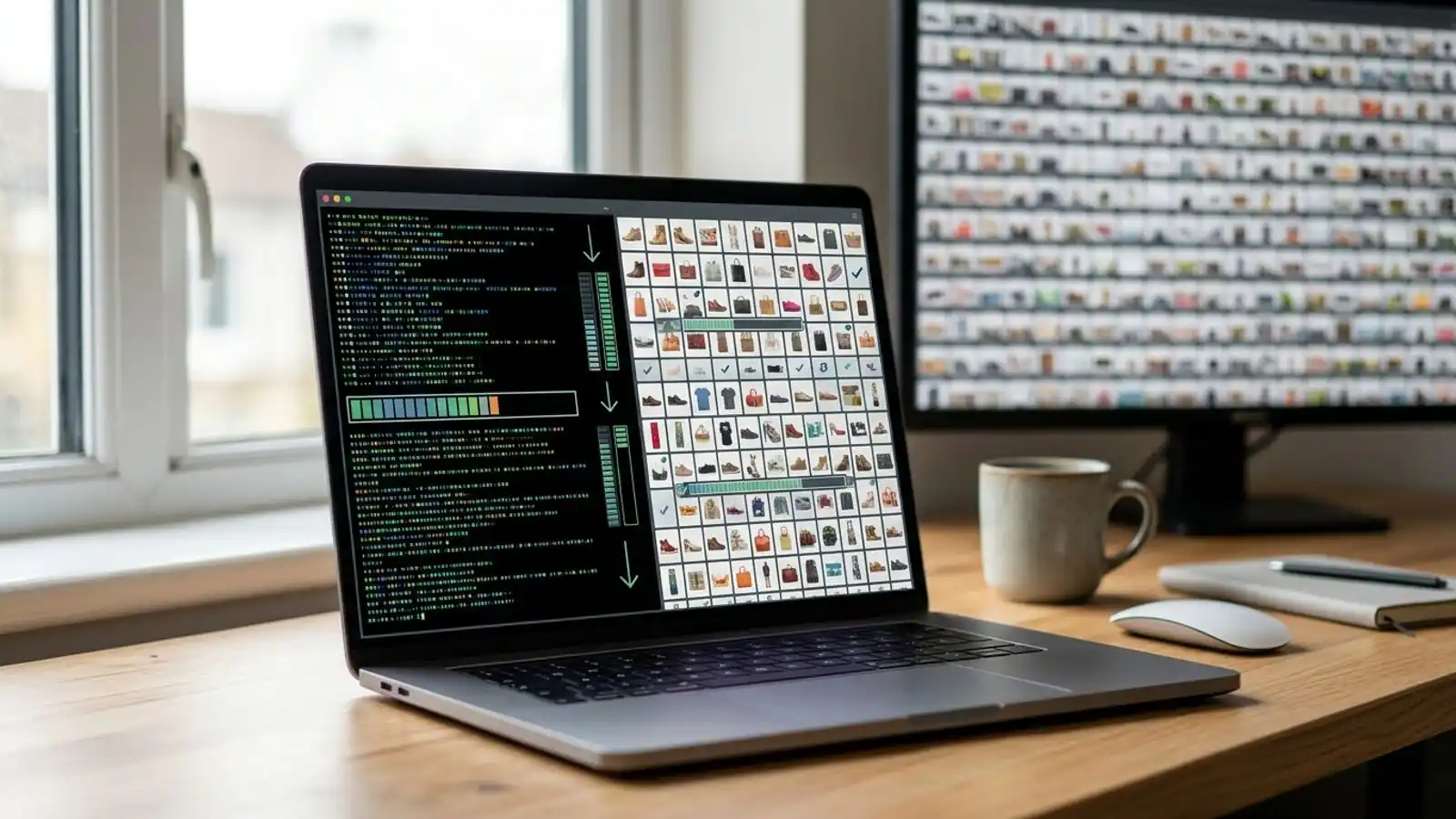
Product photos without melting is easier when you start with a clear default and a quick visual check.
Why 1,000 photos is where things start to break
Compressing ten product photos is easy with any tool. At a thousand, the problems come from your hardware and your workflow, not the codec.
A typical product shoot gives you 24–45 MP JPEGs straight from the camera, often 8–20 MB each. Decoded into memory, one 24 MP image takes about 70 MB as uncompressed RGB, and more if the tool keeps an alpha channel or works at 16-bit depth. Run eight of those in parallel with an encoder that buffers the whole image and you've used gigabytes of RAM. Add a fan running flat out for forty minutes, and on thin laptops, thermal throttling that halves your throughput halfway through.
This guide covers three practical ways to batch compress images for an ecommerce catalog:
- Local CLI: free and fast, but it uses your machine's CPU and RAM.
- Browser tools: no setup, fine for small batches, weak at catalog scale.
- An image compression API: the work runs on remote servers, so your laptop only handles uploads and downloads.
Each one comes with working examples, its trade-offs, and when to pick it.
Step 0: Lock your output spec before touching a tool
Most bulk image compression jobs that go wrong were never specified. Before you process anything, write these down:
- Max dimensions. Most storefront zoom viewers rarely need more than 2000–2500 px on the long edge. Don't ship 6000 px originals.
- Output format. As of 2026, WebP and AVIF are supported by all current major browsers. JPEG is still the safest fallback for marketplaces, email, and feeds that re-ingest images.
- Quality target. Pick one starting value per format, for example WebP q≈80 or AVIF q≈50–60 depending on the encoder's scale. Check it on a sample before you run the full set.
- Metadata policy. Strip EXIF/GPS by default. Keep the ICC color profile, or convert to sRGB, so product colors stay accurate.
- Orientation. Apply the EXIF rotation before stripping metadata, or some photos will end up sideways.
- Naming. Use stable, SKU-based filenames such as
sku-1234-front.webp. Don't overwrite originals. - Transparency. Cut-out product shots on transparent backgrounds need a format that supports alpha (PNG, WebP, AVIF), not JPEG.
Tip: Build a 20-image "calibration set" covering your hardest cases: fine fabric texture, glossy reflections, white-on-white products, and transparent PNGs. Tune your settings on that set, then run the full batch.
Option 1: Local CLI (fast, free, hard on your hardware)
Command-line tools are the most flexible way to batch compress images. They're also the option most likely to overheat your laptop if you run them naively. Memory behavior matters more than raw speed here.
libvips / vipsthumbnail (best default for big batches)
libvips streams image data through a pipeline instead of loading whole images into memory. That makes it much lighter than tools that decode everything up front. vipsthumbnail handles resizing, color handling, and output in one pass:
mkdir -p out

# Resize to fit within 2000x2000, write WebP at Q=80, strip metadata.
# On libvips 8.15+, use [Q=80,keep=none] instead of strip.
find src -type f -iname '*.jpg' -print0 \
  | xargs -0 -n 20 -P 3 \
    vipsthumbnail --size 2000x2000 -o "$PWD/out/%s.webp[Q=80,strip]"
Key details:
-P 3runs three processes at a time. A good rule is physical cores minus one, so the OS and your other apps stay responsive.-n 20passes files to each process in groups of 20, which saves process start-up time.- Use an absolute
-opath. Relative paths are resolved against each input file's directory.
sharp (Node.js, when you need logic)
When filenames, sizes, or formats depend on SKU data, a short script is easier to maintain than shell one-liners. sharp is built on libvips, so memory use is similar.
import sharp from 'sharp';
import { readdir, mkdir } from 'node:fs/promises';
import path from 'node:path';
import os from 'node:os';

const SRC = 'src';
const OUT = 'out';
const WORKERS = Math.max(1, os.cpus().length - 1);

sharp.cache(false);     // don't hold decoded images in memory
sharp.concurrency(1);   // one thread per image; parallelism comes from workers

await mkdir(OUT, { recursive: true });
const files = (await readdir(SRC)).filter(f => /\.(jpe?g|png)$/i.test(f));

let next = 0;
async function worker() {
  while (next < files.length) {
    const file = files[next++];
    const name = path.parse(file).name;
    try {
      await sharp(path.join(SRC, file))
        .rotate() // apply EXIF orientation
        .resize({ width: 2000, height: 2000, fit: 'inside', withoutEnlargement: true })
        .webp({ quality: 80 })
        .toFile(path.join(OUT, `${name}.webp`));
    } catch (err) {
      console.error(`FAILED ${file}: ${err.message}`);
    }
  }
}

await Promise.all(Array.from({ length: WORKERS }, worker));
sharp drops most metadata by default unless you ask to keep it. Real parallelism is also capped by Node's libuv thread pool, which defaults to four threads. Raise UV_THREADPOOL_SIZE only if you have the cores and the cooling for it.
ImageMagick (familiar, but cap its memory)
ImageMagick works, but by default it can take a lot of RAM on large sources. Set limits explicitly:
magick mogrify -limit memory 1GiB -limit map 2GiB \
  -path out -auto-orient -resize '2000x2000>' -strip \
  -quality 80 -format webp src/*.jpg
The > in the resize geometry means images are only ever shrunk, never enlarged.
CLI pros and cons
Pros: no per-image cost, full control, works offline, easy to script into CI.
Cons: uses your CPU for the whole run, encoder versions differ between machines (so results differ too), AVIF encoding is slow on laptop CPUs, and you have to handle retries and failures yourself.
Option 2: Browser tools (zero setup, limited scale)
Browser-based compressors are the quickest way to fix a handful of images. Drag, drop, download. For product photo optimization at catalog scale, they run into hard limits:
- Memory limits. Memory limits vary by browser, operating system, and device, and there is no universal per-tab cap. Large batches can still exhaust the available memory. Decoding hundreds of high-resolution JPEGs in one tab can lead to crashes or silent stalls.
- Client-side encoding. Tools that encode locally (often with WebAssembly builds of libwebp or libavif) still use your CPU. They're usually slower than native CLI builds, and AVIF especially so.
- Upload-based tools. If the tool processes server-side, your bottleneck becomes upload bandwidth. A thousand 12 MB originals is about 12 GB to push through a browser upload dialog.
- No resumability. Close the tab at image 640 and you're usually starting over.
- Manual downloads. Collecting the output means ZIP files and then manually renaming or sorting into folders.
Browser tools are a good fit for one-off fixes, a merchandiser updating a single collection, or building and checking your calibration set before you script the full run. The Comprestack homepage works this way: drop in images, choose a format, and compare results before you commit to settings.
Option 3: An image compression API (move the work off your laptop)
With an image compression API, the decoding and encoding run on remote servers. Your machine handles HTTP requests and file I/O, which is light enough that the laptop stays usable during the run.
What a well-built batch client looks like
Whichever provider you use, a production-grade batch client should have:
- Bounded concurrency. 4–8 requests in flight is usually enough. More than that tends to cause rate-limit responses rather than speed things up.
- Retries with backoff. On timeouts and 429/5xx responses, wait 1s, 2s, 4s, and so on. Never retry 4xx validation errors in a loop.
- Idempotent output paths. Skip files whose output already exists, so you can re-run the job after a crash.
- A manifest. Record input file, output file, original bytes, output bytes, and status in a CSV. It doubles as your QA and audit log.
- Credentials kept out of code. Read API keys from environment variables, not from the script.
Example: a resumable shell loop
The structure below works with any HTTP image API. The endpoint and form-field names are placeholders. Take the real request format from the Comprestack API docs.
#!/usr/bin/env bash
set -euo pipefail
export API_URL="https://<endpoint-from-docs>"   # see /docs
export API_KEY="${COMPRESTACK_API_KEY:?set your key}"
mkdir -p out

compress_one() {
  src="$1"
  dst="out/$(basename "${src%.*}").webp"
  [ -s "$dst" ] && exit 0                       # resumable: skip finished files
  curl --fail --silent --show-error \
       --retry 4 --retry-delay 2 --retry-all-errors \
       -H "Authorization: Bearer $API_KEY" \
       -F "file=@${src}" -F "format=webp" -F "quality=80" \
       -o "$dst" "$API_URL" \
    && echo "ok,$src,$dst" \
    || { rm -f "$dst"; echo "fail,$src,"; }
}
export -f compress_one

find src -type f \( -iname '*.jpg' -o -iname '*.png' \) -print0 \
  | xargs -0 -n 1 -P 6 bash -c 'compress_one "$0"' >> manifest.csv
--retry-all-errors requires curl 7.71 or newer. On older versions, remove it and rely on --retry alone.
API pros and cons
Pros: your laptop stays cool and responsive, encoder versions are the same across your whole team, slow formats like AVIF become practical, and the same pipeline can run from CI or a PIM/DAM webhook without any code changes.
Cons: per-image cost above the free tier, upload bandwidth still matters for large originals, and your images pass through a third party, so check the provider's retention policy.
Decision table: which method fits your catalog?
| Situation | Best fit | Why |
|---|---|---|
| Under ~50 images, one-off fix | Browser | No setup; visual comparison before download |
| 1,000+ images, desktop with good cooling, JPEG/WebP only | Local CLI (libvips/sharp) | Fast, free, fully scriptable |
| 1,000+ images on a thin laptop, or AVIF output needed | API | AVIF encoding is CPU-heavy; offloading avoids throttling |
| Recurring uploads (new SKUs weekly) | API from CI or webhook | Repeatable, same output on every machine, no manual steps |
| Strict "images never leave our network" policy | Local CLI or self-hosted | Avoids third-party processing |
| Agency serving multiple storefront clients | API or white-label setup | Per-client keys, consistent output, billing kept separate |
Pre-flight and QA checklist
Run through this before and after every bulk image compression job:
Before
- [ ] Originals backed up and kept read-only. Never compress in place.
- [ ] Output spec written down: max dimensions, format, quality, metadata, naming.
- [ ] Settings tuned on a 20-image calibration set.
- [ ] Concurrency set to cores − 1 (CLI) or 4–8 requests (API).
- [ ] Enough free disk space for originals plus outputs plus temp files.
- [ ] Laptop plugged in and on a hard surface, if you're encoding locally.
After
- [ ] Output count matches input count. Check
manifest.csvfor failures. - [ ] Spot-check 1 in 50 images at 100% zoom, especially textures, gradients, and white backgrounds.
- [ ] Confirm orientation is correct on phone-shot images.
- [ ] Confirm colors match on a color-managed display, and that ICC profile or sRGB conversion was handled.
- [ ] Transparent PNGs kept their alpha channel.
- [ ] Total size reduction recorded in the manifest, for your own before/after record.
- [ ] Your storefront platform doesn't re-encode uploads anyway. Many hosted platforms generate their own resized versions, so check what they do to your files.
Common mistakes that waste a whole afternoon
- Compressing twice. Re-encoding an already-compressed JPEG at "quality 80" stacks artifacts on top of artifacts. Always start from originals.
- Unlimited parallelism.
xargs -P 0orPromise.all(files.map(...))across 1,000 files will exhaust your memory. Always cap it. - One quality value for everything. Flat-lay apparel shots and glossy electronics compress very differently. If your catalog has distinct categories, use per-category presets.
- Losing the mapping. If outputs are renamed, keep the manifest. Six months from now, someone will need to know which original produced
sku-1234-front.webp.
Try it on Comprestack
<!-- EDITOR: Before publishing, verify against the live /pricing page: (1) free-tier quota of 20 images/month, (2) White label terms (branded UI + API, prepaid credits). Then replace [DATE CHECKED] below with the verification date. -->
- Test settings in the browser: use the compressor and converter on your calibration set to compare JPG, PNG, WebP, and AVIF output side by side.
- Script the full run: follow the API docs to plug Comprestack into the batch client above, then track usage and keys in your dashboard.
- Pick a plan that fits your volume: as of [DATE CHECKED], the free tier covers 20 images a month for testing. Catalog-scale jobs fit better on a paid plan or image pack. Pricing and quotas can change, so see the current pricing page for up-to-date details.
- Running this for clients? Agencies can ask about White label. As of [DATE CHECKED], it offers a branded UI and API on prepaid credits. Check the pricing page for current terms, or contact us to discuss setup.
Try it on your images
Compress or convert in the browser — same quality-first pipeline we write about.