Fix Largest Contentful Paint: The Image Checklist That Actually Moves LCP
A practical LCP image checklist: find the real bottleneck, then fix priority, discovery, dimensions, format, compression and lazy-load mistakes in the right order.
Mike · · · 11 min read · 2,257 words
Fix largest contentful paint is easier when you start with a clear default and a quick visual check.
Why most LCP image fixes don't move the number
Largest Contentful Paint (LCP) measures how long it takes for the largest image or text block in the viewport to render. Google's "good" threshold is 2.5 seconds or less. Anything over 4 seconds counts as "poor". The score is taken at the 75th percentile of real page loads, with mobile and desktop counted separately. So a fast median is not enough: three out of four visits have to clear the bar.
On most pages the LCP element is an image, usually a hero photo, a product shot or a large banner. That is why "compress your images" is the standard advice. It is also why that advice so often fails. Compressing the hero image helps only when download time is the bottleneck, and on many real sites it isn't.
This guide puts the fixes in the order that tends to matter: diagnose first, then priority and discovery, then dimensions, format and compression.
Step 1: Find out which part of LCP is slow
When the LCP element is an image, LCP splits into four consecutive subparts:
| Subpart | What it measures | Typical image-related cause |
|---|---|---|
| TTFB | Navigation start until the first byte of HTML arrives | Slow origin, redirects, no edge caching |
| Resource load delay | TTFB until the browser starts requesting the LCP image | Late discovery, low priority, lazy-loading |
| Resource load duration | Time spent downloading the image | Oversized file, wrong format, bandwidth contention |
| Element render delay | Image downloaded until it is painted | Render-blocking CSS/JS, hidden-until-hydrated heroes, carousels |
Google's rough guideline is that the two "delay" subparts should be close to zero, with most of the time going to TTFB and the image download. Treat that as a direction, not a quota. Check the breakdown for your own page.
Where to get the breakdown:
- Chrome DevTools → Performance: record a reload, then open the LCP breakdown in the insights panel.
- Lighthouse / PageSpeed Insights: the "Largest Contentful Paint element" audit lists the subparts.
- Field data: CrUX reports LCP subparts. Real-user monitoring built on the
web-vitalslibrary orPerformanceObservercan derive them too.
If lab and field results disagree, go with the field data. That's what Core Web Vitals assessments use.
The trap: shifting time instead of saving it
Optimizations can move time from one subpart to another without cutting total LCP. The classic case is a hero that stays hidden until a JavaScript bundle finishes. Make that image 60% smaller and it arrives sooner, but it still waits for the script. The time you saved on download turns into render delay, and LCP doesn't change.
That's why diagnosis comes first. The fix depends on which subpart is the bottleneck.
Step 2: Make the LCP image discoverable in the HTML
If resource load delay is large, the browser is finding the image too late. Byte savings won't fix that. Instead, check:
- Use a real
<img>with a realsrcin the server-rendered HTML. The browser's preload scanner finds images in the raw HTML before the page is parsed, styled or scripted. An image injected by JavaScript, or set asdata-srcfor a loader script, can't be fetched until that code runs. - Avoid CSS
background-imagefor the hero. The preload scanner doesn't see background images. They are requested only after the stylesheet has downloaded and been parsed, and the matching element exists. A common replacement is an<img>withobject-fit: cover. - If the image really can't be in the HTML, preload it. Some frameworks or designs force a CSS background or a client-rendered component. In that case, add a
<link rel="preload" as="image">in the<head>. - Host it where a connection is already open. An LCP image on a separate third-party domain needs its own DNS lookup, connection and TLS setup. Serve it from the same origin or a CDN host you already use, or add
<link rel="preconnect">to that host early.
A minimal, discoverable hero:
<img
  src="/img/hero-1280.avif"
  srcset="/img/hero-640.avif 640w,
          /img/hero-960.avif 960w,
          /img/hero-1280.avif 1280w,
          /img/hero-1920.avif 1920w"
  sizes="100vw"
  width="1920" height="1080"
  alt="Product dashboard on a laptop screen"
  fetchpriority="high">
For a preloaded responsive image, mirror the srcset and sizes so the browser fetches the same file the <img> will use:
<link rel="preload" as="image"
  href="/img/hero-1280.avif"
  imagesrcset="/img/hero-640.avif 640w, /img/hero-960.avif 960w,
               /img/hero-1280.avif 1280w, /img/hero-1920.avif 1920w"
  imagesizes="100vw"
  fetchpriority="high">
If the preload and the <img> disagree on the file, you download the hero twice. That makes things worse.
Step 3: Set priority explicitly with fetchpriority
Discovery and priority are separate problems. preload controls when the browser learns about a resource. fetchpriority controls how urgently it fetches the resource once it's in the queue.
In Chromium-based browsers, an image starts at low priority and is raised to high only after layout shows it's in the viewport. Layout requires CSS, so the upgrade happens late. fetchpriority="high" on the LCP <img> makes it high priority as soon as the browser finds it.
Practical rules:
- Put
fetchpriority="high"on the single most likely LCP image per template. As of 2026, current versions of all major browser engines support the attribute. Older browsers ignore it, so adding it is safe. - Don't mark everything high. If five images and three scripts all claim high priority, the hint stops meaning anything and they compete for bandwidth again.
- Use
fetchpriority="low"on above-the-fold images that aren't the LCP element, such as carousel slides 2–n, header avatars and decorative icons. This frees bandwidth for the hero. - Mobile and desktop can have different LCP elements. If the layouts differ, check each one. Don't assume the desktop hero is also the mobile LCP.
Step 4: Never lazy-load the LCP image
loading="lazy" delays a fetch until the browser confirms the image is near the viewport. That requires layout, which is the same wait that fetchpriority exists to skip. On the LCP image it adds load delay with no benefit.
This mistake is often added by tools, not written by hand:
- CMS and optimization plugins that add
loading="lazy"to every<img>, or swapsrcfor a placeholder and realdata-src. - Framework image components that lazy-load by default unless you set a priority or eager flag on the hero.
- Theme templates where the first content image is set up the same way as the twentieth.
Check the rendered HTML, not your source template. Search for the LCP image's URL and confirm it has a real src, no loading="lazy", and ideally fetchpriority="high".
Lazy-loading is still worth using below the fold. Deferring the other images on a long page reduces bandwidth contention, which can help the hero download faster. Lazy-load everything except the LCP candidate and whatever else is visible on first paint.
Step 5: Serve the right pixel dimensions
Dimensions affect LCP in two ways: how many bytes you send, and whether the layout is stable.
Bytes. Sending a 3840px-wide image into a 390px-wide phone viewport wastes most of the download. The browser also gets no LCP credit for the extra pixels: an image's LCP size is the smaller of its visible size and its intrinsic size. Use srcset with width descriptors and an accurate sizes value:
- Generate a handful of widths that cover your layouts (for example 640, 960, 1280, 1920, plus 2560 for wide hero layouts).
- Make
sizesdescribe the real rendered width.sizes="100vw"for an image that only fills half the viewport on desktop tells the browser to download about twice the pixels it needs. - Above roughly 2× device pixel ratio, most viewers can't see the extra detail. Many teams stop the hero's largest candidate at about 2× the layout width.
Stability. Always set width and height (or CSS aspect-ratio) so the browser reserves space before the image arrives. That is mainly a Cumulative Layout Shift fix. It also stops late layout changes from moving which element ends up as the LCP candidate.
Step 6: Choose the format deliberately
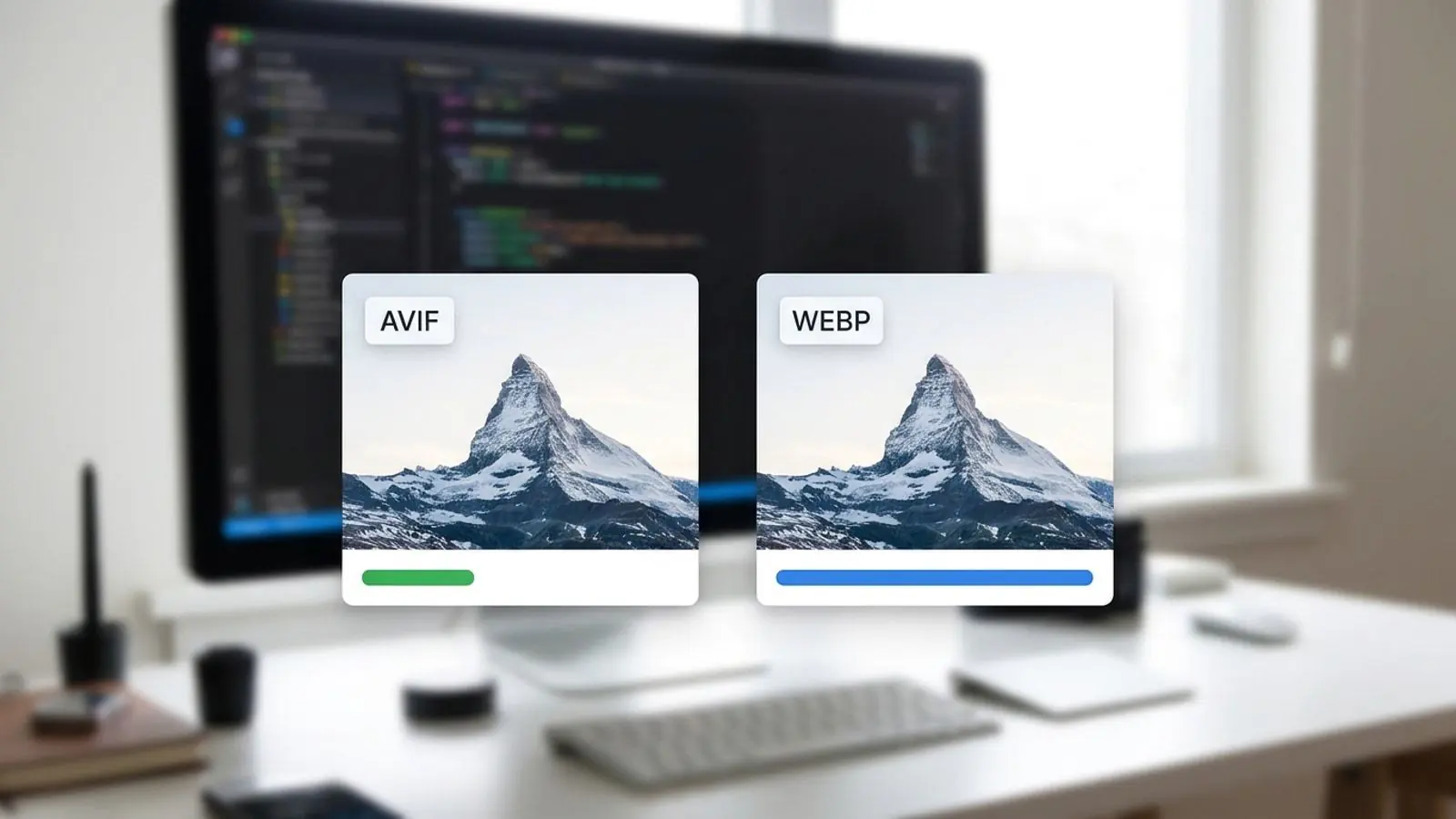
As of 2026, AVIF and WebP are both broadly supported in current browsers. For photographic heroes they are usually much smaller than an equivalent-quality JPEG. Use <picture> if you still need a fallback for older clients:
<picture>
  <source type="image/avif" srcset="/img/hero-1280.avif 1280w, /img/hero-1920.avif 1920w" sizes="100vw">
  <source type="image/webp" srcset="/img/hero-1280.webp 1280w, /img/hero-1920.webp 1920w" sizes="100vw">
  <img src="/img/hero-1280.jpg" width="1920" height="1080" alt="..." fetchpriority="high">
</picture>
Put fetchpriority on the <img>. The <source> elements only pick the file.
How to choose a format for a hero:
| Hero content | Good first choice | Notes |
|---|---|---|
| Photograph, gradients, soft detail | AVIF, WebP fallback | AVIF usually wins on bytes. Check skin tones and smooth gradients for banding. |
| Screenshot / UI with sharp text | WebP (lossless or high quality) or PNG | Aggressive lossy settings blur text edges. Compare both options at actual size. |
| Flat illustration, few colors | SVG via <img> or lossless WebP |
Inline <svg> isn't currently an LCP candidate, but <img src="*.svg"> is. |
| Animated hero | A video with a poster image | For a <video>, LCP uses the poster or the first frame. Keep the poster small. |
Two caveats:
- Encoding cost matters if you encode at request time. AVIF encoding is slower than WebP or JPEG. Pre-encode heroes at build or upload time. Don't transcode them on a cold request in the critical path.
- Decode is rarely the bottleneck, but test on low-end phones. If render delay grows after a format switch, profile on a throttled CPU before blaming the network.
Step 7: Compress to a visual target, not a magic number
Compression reduces resource load duration, and that only matters if load duration is a meaningful share of your LCP. If it is:
- Judge quality at the rendered size and pixel density. Artifacts you see at 400% zoom are usually invisible at 1× on a phone.
- Don't carry quality numbers across encoders. "Quality 75" in one JPEG encoder, one WebP encoder and one AVIF encoder gives three different results. Set quality per format by looking at the output.
- Strip metadata. EXIF blocks, embedded thumbnails and unneeded color profiles add bytes and don't change what's displayed. Keep or convert to sRGB unless you deliberately serve wide gamut.
- Re-check after every design change. A new hero crop or a darker overlay changes how much compression the image can take.
- Cache hard. Serve versioned filenames with a long
Cache-Controlmax-age. On repeat visits, a cached hero's load duration drops to almost nothing.
Hero image compression is still worth doing once discovery and priority are fixed. Do those first, because their gains add to each other. Compression before a discovery fix often just turns saved time into load delay.
Step 8: Remove render delay around the image
If the image downloads in time but paints late, the problem is on the page side, not in the image:
- Render-blocking CSS and synchronous scripts in
<head>hold up the first paint. Inline critical CSS and defer the rest. - Hero content revealed by JavaScript (fade-in animations, A/B test anti-flicker snippets, client hydration) keeps the image invisible after it has loaded.
- Carousels that start with a loader or swap slides on init can make a later slide the reported LCP element.
- Long main-thread tasks finishing just as the image arrives delay its paint, because browsers paint images on the main thread.
The LCP image checklist
Work through this per page template, not per site:
- ☐ Identify the LCP element for mobile and desktop separately (DevTools or field data).
- ☐ Read the four-subpart breakdown and note which one dominates.
- ☐ The LCP image is an
<img>with a realsrcin the server-rendered HTML. - ☐ No
loading="lazy", nodata-srcplaceholder swap, no JavaScript-only injection. - ☐
fetchpriority="high"is set on that image, and only that image. - ☐ If it's a CSS background or late-rendered, a matching
<link rel="preload" as="image">is in<head>. - ☐ Served from the main origin or a pre-connected CDN host.
- ☐
srcset+ accuratesizes, with the largest candidate around 2× layout width. - ☐
width/heightoraspect-ratioset. - ☐ AVIF or WebP with a fallback, chosen by content type.
- ☐ Compressed to a visual target at rendered size, with metadata stripped.
- ☐ Long-lived
Cache-Controlon versioned URLs. - ☐ Nothing hides the hero until JavaScript runs.
- ☐ Below-the-fold images lazy-loaded. Non-LCP above-the-fold images set to
fetchpriority="low". - ☐ Re-measure in the lab, then confirm in field data after the 28-day window rolls over.
Quick decision table: symptom → fix
| What you see | Most likely subpart | First fix to try |
|---|---|---|
| Image request starts long after the HTML arrives | Load delay | Put it in the HTML, remove lazy-loading, add fetchpriority="high" |
| Request starts only after CSS downloads | Load delay | Replace the background image with <img>, or preload it |
| Request starts early but downloads slowly | Load duration | Resize via srcset, switch to AVIF/WebP, compress, cut contention |
| Image is loaded but paints much later | Render delay | Remove JS reveal, defer blocking scripts, inline critical CSS |
| Everything after the HTML is fast, LCP still slow | TTFB | Edge caching, fewer redirects, CDN. No image change will fix this. |
Try it on Comprestack
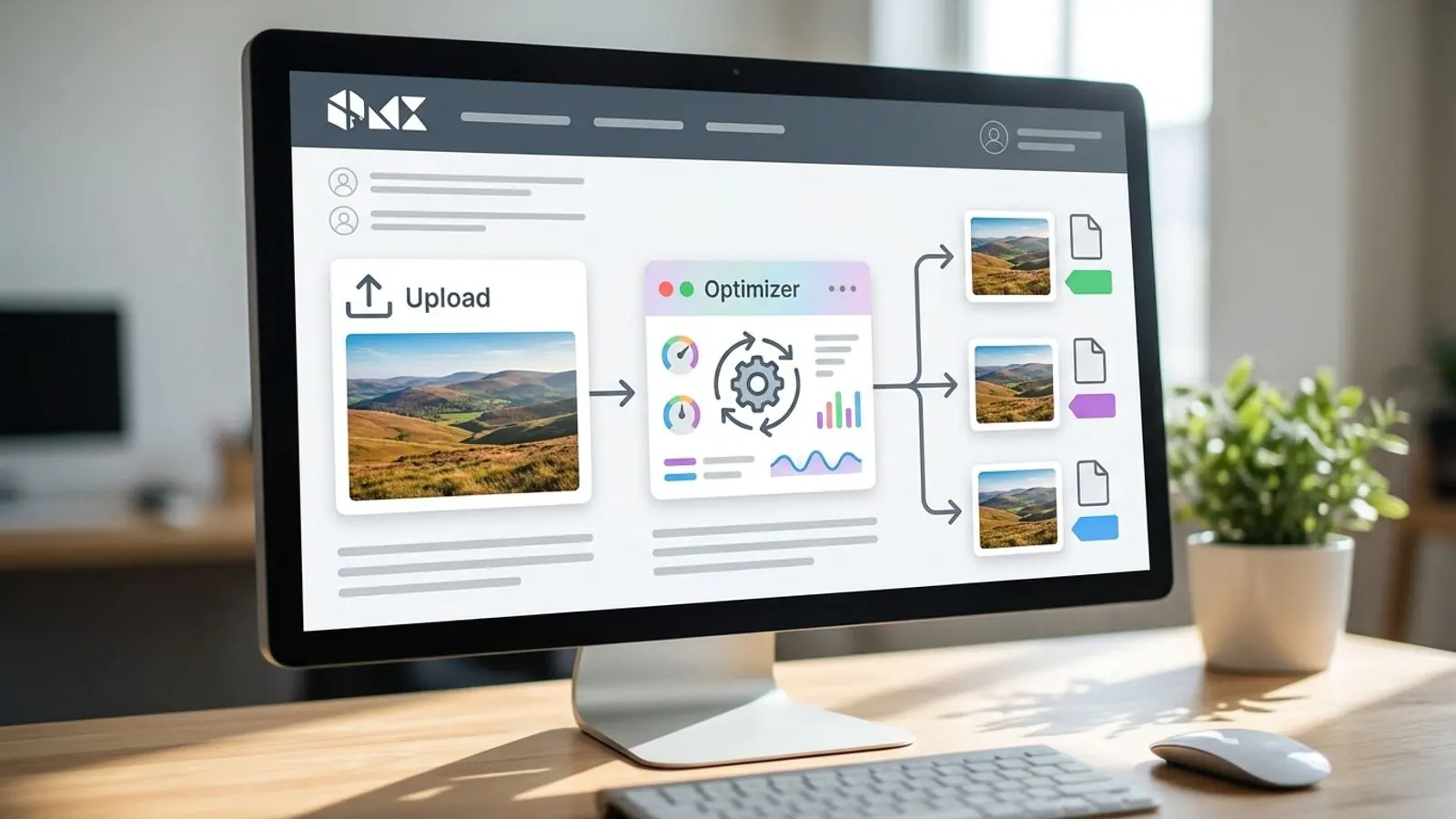
Once discovery and priority are fixed, the remaining work is generating correctly sized AVIF and WebP versions of each hero and compressing them to a visual target.
- Compress or convert a hero image to AVIF, WebP, JPG or PNG and compare the output at its real display size.
- Add it to a build or upload pipeline with the Comprestack API, so every new hero ships resized and pre-encoded.
- Check plans and limits. There's a free tier for occasional use, and White label if you need a branded compression UI or API for your own clients.
Try it on your images
Compress or convert in the browser — same quality-first pipeline we write about.